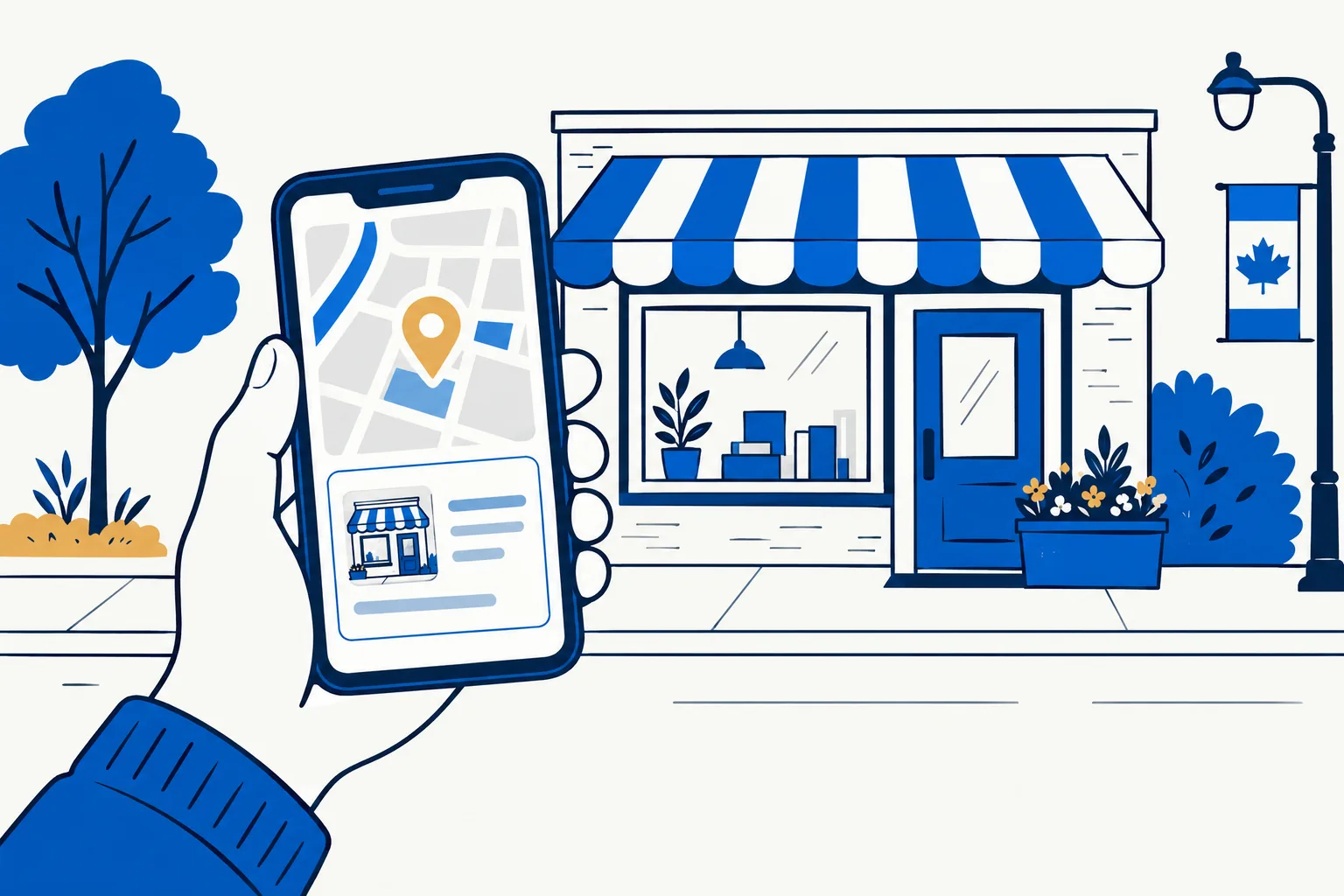
1. Check eligibility and look for an existing profile
Google allows profiles for businesses that meet customers at a physical location or travel to customers. Online-only businesses are generally not eligible. Read Google's representation guidelines before using a home address, virtual office or co-working space.
Search the exact business name and city in Google Maps. If the correct listing exists, choose the ownership or management option and follow the claim process. Creating a second profile can split reviews and create a duplicate that must be resolved later.
- Use the business name customers see on signs, invoices and other real-world material.
- Choose the most specific primary category that describes the main business.
- Use one profile per real location unless Google's rules for departments or practitioners apply.
2. Add or claim the business, then verify it
Go to business.google.com/add to add a missing business. Google's official claim guide says the available verification method is presented during setup. The method varies, so follow the option shown in your account instead of relying on an old tutorial that promises a postcard, phone call or fixed timeline.
Keep the name, address and category stable while verification is underway. If someone else controls a verified profile, request access through Google's ownership process rather than making a competing listing.
Keep reading
Google Business Profile versus a website
Pagely's editorial team keeps this guide current for the same claim-checking process behind every page.
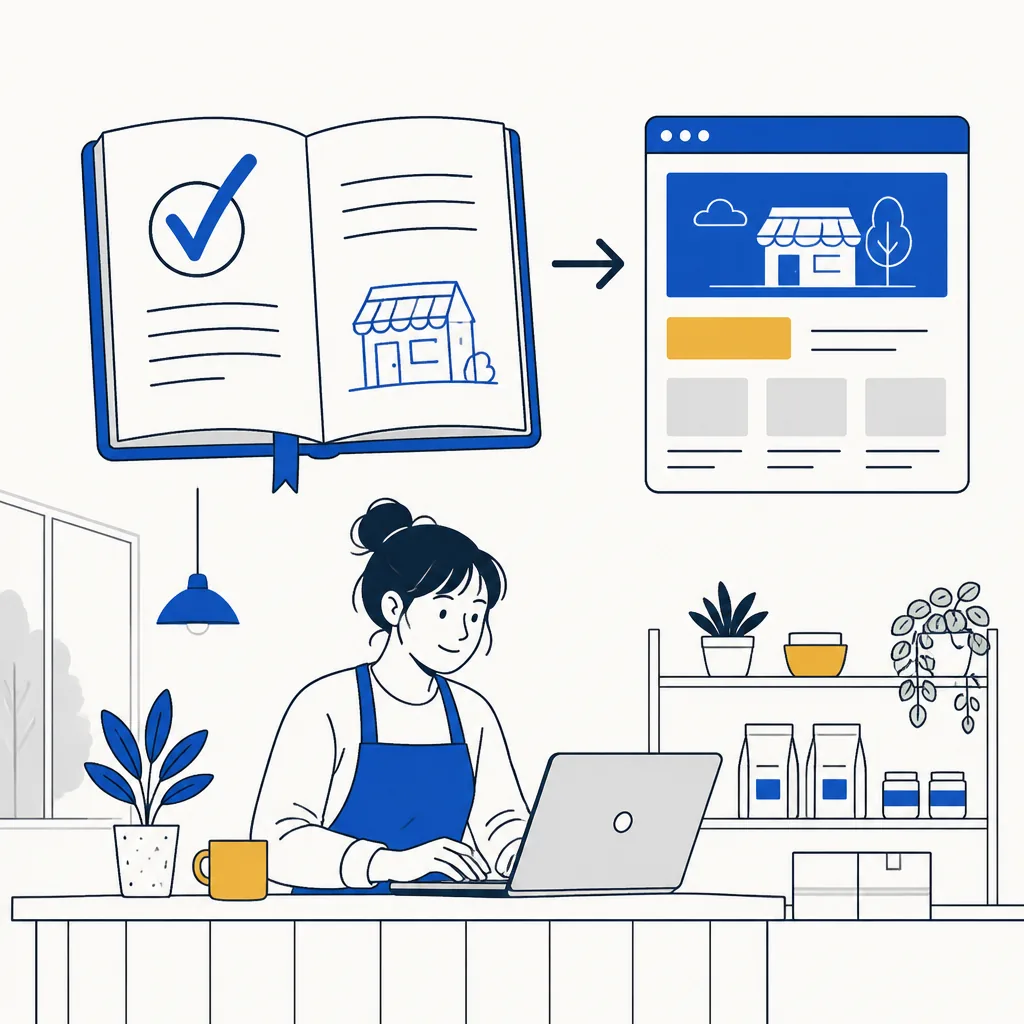
3. Complete the information customers use
Add regular and special hours, a local phone number, your website, services, an accurate description and current photos. A service-area business that does not receive customers at its address should hide that address and define the area it actually serves.
Match the same core details on your website. A customer should not have to decide whether the Tuesday hours on Google or the hours on your contact page are correct.
4. Add the website and maintain the profile
Link to the page that best represents this location. Update holiday hours, services and contact details whenever they change. Ask real customers for honest reviews without paying, discounting or writing the review for them, and respond in a way that protects customer privacy.
Google says complete, accurate information can help a profile match relevant local searches, while local ranking also depends on distance and prominence. No provider can buy or guarantee first place. See Google's local ranking explanation.
In Pagely, a Google listing can supply business details and real review content. Review the imported details before publishing. Pro can refresh connected review information monthly; Free owners can reconnect and refresh it manually.
Sources reviewed
Product features and third-party guidance can change. These primary sources were checked on September 14, 2026.